Apple Business Manager (ABM)
Manual iOS ADE/DEP Enrollment Using a Spare iPhone or iPad
macOS Device Enrollment
Apple Business Manager - Device Enrollment
ABM Bulk App Deployment
Apple Business Manager - Apps Deployment
Apple Configurator
Adding iOS Devices to ABM using Apple Configurator
Adding iOS devices to ABM using Apple Configurator on a Mac Computer
Enabling Supervised Mode for iPhone and iPad
Bulk SMS
Cloud Console
Configuring Wallpaper on iOS Devices Using Cyber Device Manager
How to manage mobile devices and apps using Codeproof?
Mobile Alert Management
Cloud Console TWO Factor (2FA) Authentication
Device Lookup by Phone Number, IMEI, ICCID or Employee Name
iOS7 system properties are available
Content Filtering
iPhone, iPad and iPod Touch Parental Controls in Codeproof
Web Content filtering in iPhone, iPad and MacOS
Secure Browser and Web Content Filtering
Securing Chrome Browser and Web Filtering in Android
Email Management
How to configure Office365 email or Exchange EAS on Apple devices
Configure Office365 email accounts in mobile devices
Configuring Microsoft Exchange ActiveSync Email on Samsung Devices
Configuring Microsoft Exchange ActiveSync Email on LG devices
File Management
How To Articles
Migrating Supervised iPhones Between MDMs (ABM/ADE) — Zero‑Drama Runbook
Deploying Devices in Codeproof: Greenfield vs. Fielded
How to Configure Programmable Keys with Managed Configurations on Kyocera Devices
How to Transfer Data with the Samsung Smart Switch App?
How to enable native app Whitelisting in Android?
How to Disable the Edge Panel on Samsung Devices
How to turn off Google Play Protect on managed devices
How to block Android Overview Button?
How to remove passwords remotely from locked Android phones
Difference between Reset All Settings v/s Erase All Content And Settings?
How to block "Settings" changes in Android devices?
How to prevent the Mobile Device Management protection from being turned off?
How to find iTunes store id or App id?
How to ping a device using Codeproof?
How to optimize Battery usage and Data usage in Android?
How to remotely change or remove the password on Android phones and tablets?
How to hard factory reset an Android Device
How to Install an APK?
How to Enable pre-loaded system apps?
How to check if a Device has a Password?
How to generate QR code for Android Device Enrollment?
How to change Android device display language
How to Block Outgoing Calls and SMS?
How to Data Wipe a device?
Known Issues
Understanding APK Deployment Limitations on Android Enterprise Profile Owner Devices
Passcode Removal Fails on Android Versions 9 and 10
Issue with website whitelisting on managed iOS Devices
Error Message After Android MDM Enrollment: Financed Device Alert
MDM Fails to Clear Passcode on iPhone
Android Q Background Location Permission Error on Moto E5 and Moto G
License Management
Mobile Device Management
Android Enterprise
Configuring Default Apps in Android
Disabling factory reset protection (FRP)
Google Workspace and Codeproof
Device Admin Deprecation - What you need to know?
Paid Apps and Managed Play Store
Managed Google Playstore
Restricting access to Account Management
Battery Level low notifications
Android Enterprise Custom Messages
Factory Reset Protection (FRP)
Android Enterprise Policies
Selectively deploying apps from the managed playstore
Android Enterprise (AE) Setup
Network Monitoring in Android
Enabling pre-loaded system apps in Android Enterprise
Apple Device Management
iMessage and Mobile Device Management (MDM): What IT Teams Need to Know
macOS Management with Cyber Device Manager
Apple Intelligence
Web clips in Apple Devices
iOS App Bundle Id
Apple Watch MDM Policies
iOS 9 MDM Restriction Policies
Blocking AppStore in Apple Devices
iPhone and iPad Restriction Policies
iOS 8 Mobile Device Management (MDM) Policies
What's new in iOS 6 MDM?
iOS7 background apps from being killed by App Switcher
Configuring iOS 7 App Policies
Deploying iOS Configuration Profiles using Profile Manager
Application Blacklisting
Blocking the default applications in Apple Devices
Suspending and Hiding Apps in Android
How to block all the downloaded apps in iOS?
Application Deployment
How to Deploy the Amazon Flex App
Android App deployment
Deploying Web Apps in Android Enterprise
iOS Enterprise App Deployment
How to Deploy Mobile Apps through Codeproof Platform
Amazon Flex App Deployment
How to update Google Play Store app
iOS App Deployment
BYOD Management
Certificate Management
Command Center
Data Leakage Prevention(DLP)
Remotely locking Android devices
How to remotely wipe all the data from Android Phone
How to remotely lock the device with a recovery key?
Phone Remote Lock and Remote Data Wipe By SMS
Device Enrollment
Restoring Backups During MDM Enrollment
Bulk Device Enrollment
Profile based MDM enrollment for Apple Devices - BYOD Scenario
Android Zero-touch Enrollment
Android MDM Setup using ADB Script
Android Enterprise - Keep All System Apps
QR Code Enrollment
Android Enterprise QR Code Generation
Apple Devices Enrollment Techniques
Device Enrollment Wizard
Device Tracking
Tracking the location of iPhone and iPad devices using MDM
Enable Lost Mode in Android
How to enable location permissions?
How to prevent the location service from being turned off?
GPS location tracking using Codeproof
Prevent end users from disabling GPS Locations
How to prevent someone from disabling find my iphone?
How to improve mobile phone location accuracy
Hotspot Management
Kiosk
Advanced Mobile Kiosk Manager
How to Create Web Apps in Kiosk App Mode on iPad and iPhone
How to update an App in Single App Mode?
Enabling Single App mode in iPhone, iPad and iPod
Mobile Apps whitelisting
How to turn-off kiosk mode?
Kiosk screen lock with a pin
Android Kiosk with Multiple and Single App Mode
Mobile Kiosk Branding
MDM Lockdown
MDM Types
MSP
Managed Configuration
Managed App Configuration Using the Cyber Device Manager
iOS Managed App Configuration Using the Cyber Device Manager
Android Managed App Configuration Using the Cyber Device Manager
Managed Contacts
Managing Phone Contacts with MDM Solutions
Force Syncing contacts in the Contact Manager
Disable Contacts Sync in the Outlook Exchange Email
Permissions Management
Android Enterprise Permission Management
How to enable Android app permissions?
Block apps based on android permissions
Mobile apps access permissions monitoring using Codeproof
Policy Management
Proxy Management
Remove MDM
Bulk Device Deletion
How to remove MDM from iPhone, iPad and iPod?
Remove MDM from ABM-DEP Enrolled Devices
Disable MDM using a code
How to remove Codeproof ?
Remove Device Admin MDM
Removing Android Enterprise MDM
SIM
Screenlock and Passcode
Remotely locking iPhone, iPad or iPod Touch devices
iOS Passcode Management
How to turn off Passcode Lock on iPhone and iPad
How to unlock iPhone, iPad and iPod touch devices?
Device screenlock status and enabling passcode policy
How to enable passcode lock in iPhone and iPad
System Update
Android System Update Requirements
Android System Update in the Single App LockTask mode
Apple iOS Software Update
Android System Update
WiFi Management
Windows MDM
Firewall Configuration for Cyber Device Manager MDM
Managing Phone Notifications on Android
MDM System Auditing
Mobile Expense Control
Products and Services
Drive Safe - A Distracted Driving Solution
Cyber Remote - Secured Remote Access
SiteSecure - Campus Camera Blocking
Codeproof® Call Blocker
Managed Mobile Hotspot
Samsung Knox
Codeproof Samsung KNOX
The new Samsung MDM Agent App
Call and SMS blocking
Access Point Name (APN) Policy Configuration
What Is
What is "Install From Unknown Sources" settings?
What are Web Apps?
What is Android Enterprise?
What is a supervised device?
Apple Configurator and MDM
Android LockTask Mode and MDM
ABM, Apple Configurator, and MDM
What is Android For Work?
mdm-errors
- All Categories
- Apple Business Manager (ABM)
- Manual iOS ADE/DEP Enrollment Using a Spare iPhone or iPad
Manual iOS ADE/DEP Enrollment Using a Spare iPhone or iPad

An IT administrator can manually enroll iOS devices (iPhone or iPad) into Automated Device Enrollment (ADE)—formerly known as the Device Enrollment Program (DEP)—using the Apple Configurator app on either a Mac computer or a spare iOS device (iPhone or iPad).
This method is useful when devices are not purchased directly through Apple’s ADE program or an authorized reseller, but still need to be supervised and managed using Codeproof MDM.
This article focuses on using a spare iPhone to perform the manual ADE enrollment process.
Prerequisites:
- An Apple Business Manager (ABM) account.
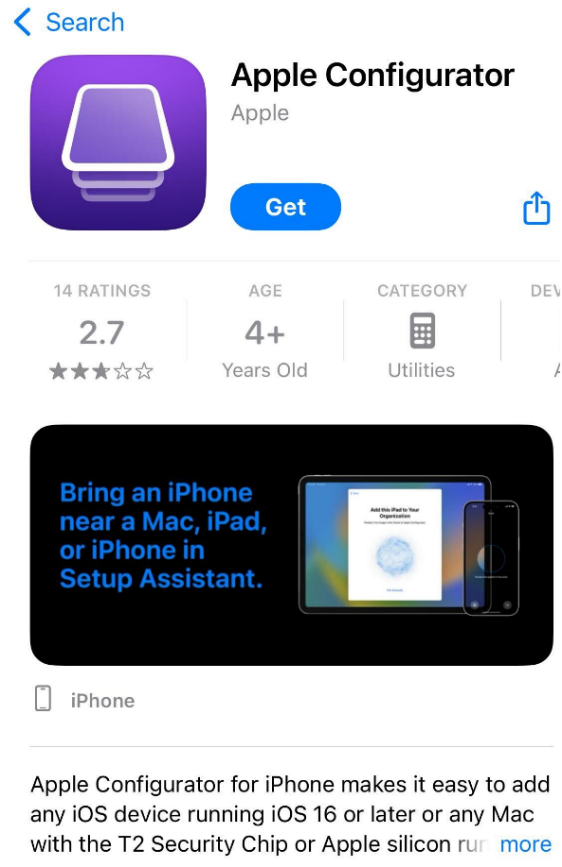
- The Apple Configurator app (available in the Apple App Store) installed on the helper iOS device(iphone/ipad).
- The target iOS device that you want to supervise and enroll.
- A Data cable or both devices connected to the same Wi-Fi network (for wireless preparation).
Note: Apple Configurator app is available on both iPhone and iPad. Make sure both the iOS devices (Helper and target) device is running on iOS 16 and above.
Step: 1 Install Apple Configurator on Helper Device
- On the helper iOS device(iPhone/iPad), open the Apple App Store.
- Search for Apple Configurator app and install the app.
Step: 2 Open Apple Configurator App
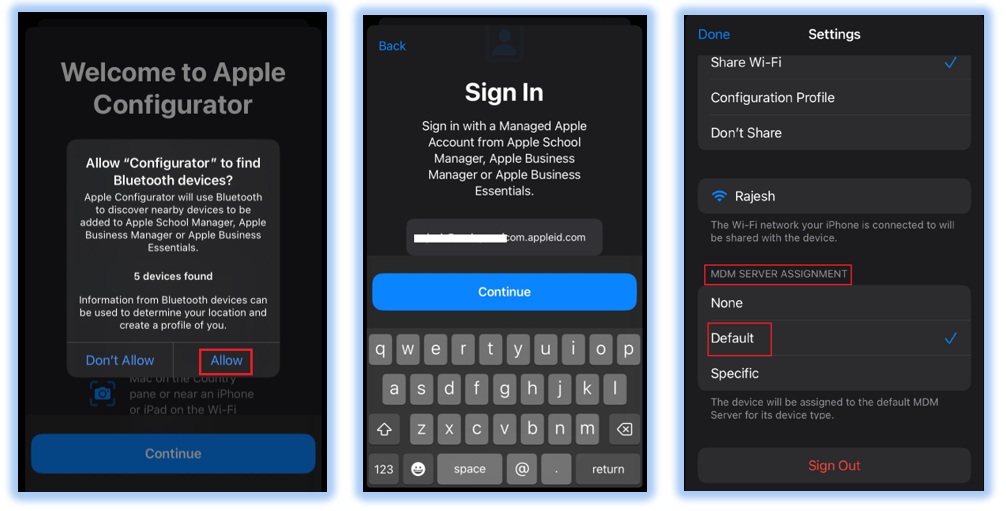
- Launch the Apple Configurator app on the helper device and click on “Allow” for Bluetooth access.
- Sign in using your Apple ID linked to your ABM.
- Go to app settings then select “Default” option under “MDM Server Assignment” and choose “Share Wi-Fi” then click on Done.
- Make sure to set the Default MDM server as the Codeproof in Apple Business Manager account.
Step:3 Connect Target Device
- Turn on the target iOS device (the one you want to enroll).
- Bring it near the helper iOS device.
- On target device, stay on Wi-Fi screen and bring near to the helper device.
Step :4 Pairing Both the Devices via Camera
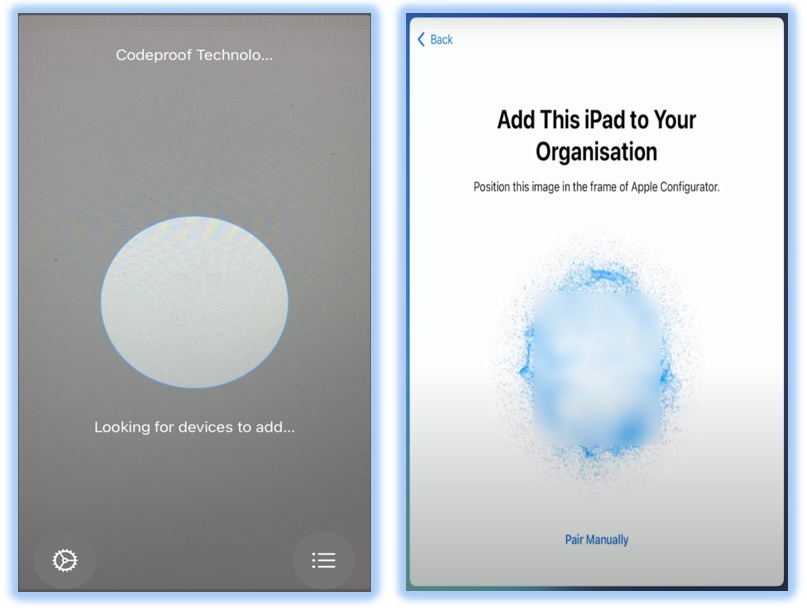
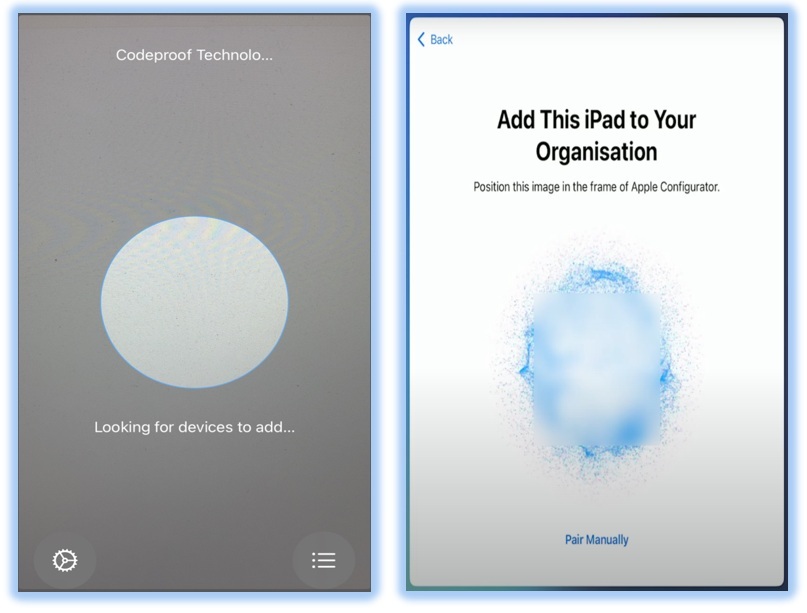
- A camera viewfinder will appear on the helper device.
- On the target device, you’ll see a pairing image.
- Use the helper device’s camera to scan the pairing image
Step :4 Device Preparation and Enrollment
- The helper device will prepare the target iOS device.
- You’ll see a progress bar showing steps like Activating iOS, Installing Profile, etc.
- Once complete, the target device automatically added to Codeproof MDM then we need to assign the MDM Profile. Please see below.
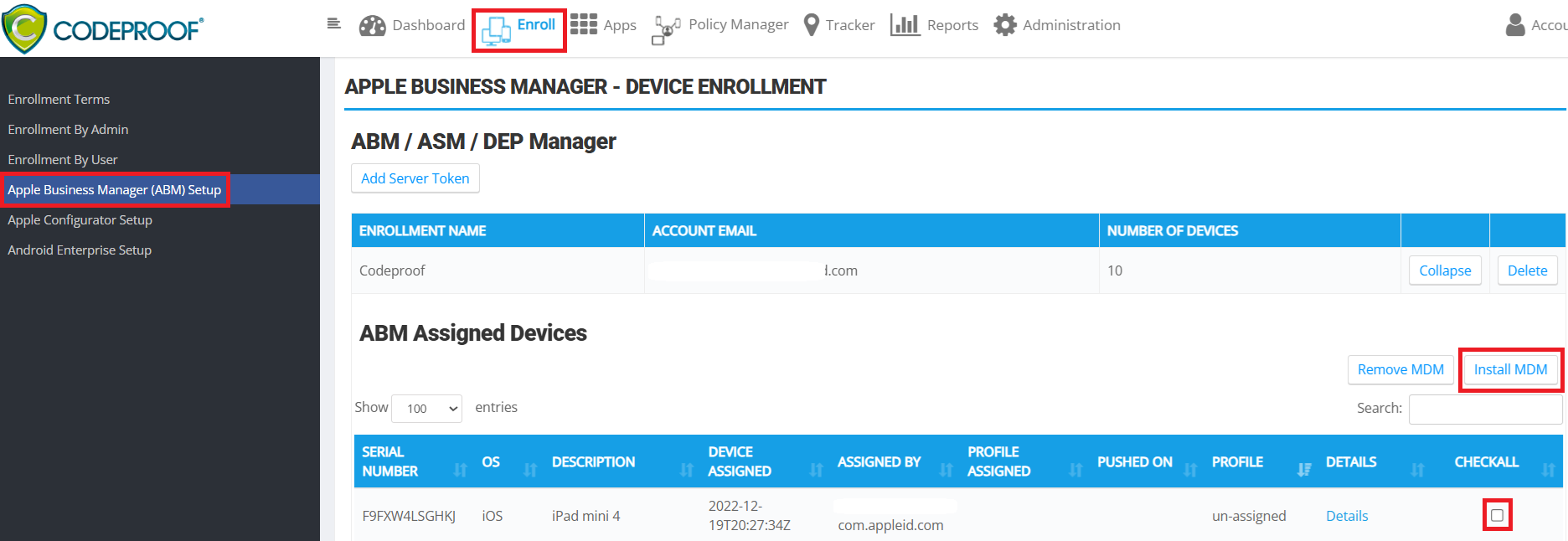
Now perform a factory reset, then proceed through the initial setup until you reach the “Remote Management” screen. Tap “Enroll this iPhone/iPad” to complete the enrollment process. After the enrollment, device entry will appear in the Codeproof Console under "Policy Manager".
Note: A MacBook is no longer required to run the Apple Configurator app. Devices can now be added to the ABM account using a spare iPhone or iPad.
For further assistance with Codeproof Cyber Device Manager®, you can reach our support team through the following channels:
Email: support@codeproof.com Live Chat: Click the chat bubble on the bottom–right corner of the dashboard.